
20 Best Workflow Automation Software To Use In 2026

10 Best Workflow Automation Software List
Here's my pick of the 10 best software from the 20 tools reviewed.


Managing complex projects manually soon becomes overwhelming. You make mistakes, miss necessary steps, and your team members get lost and confused in the resulting mess. That’s no way to run a business. Fortunately, workflow automation software is here to help.
Workflow automation software uses rule-based logic to run sequences of tasks without human intervention. You set up the rules once, and then the software takes care of getting things done. All you have to do is sit back, monitor progress, and hope you didn't mess up any of the steps, or it will need your intervention.
How I Picked The Best Workflow Automation Software
In picking the best workflow automation tool, I first researched the most popular software on the market for its reviews and user interface. Then I shortlisted based on factors that make software a good automation tool for any team. Finally, I used my experience in project automation to select the criteria by which I would evaluate the tools and inform my overviews.
Here’s a summary of my evaluation criteria:
User Interface (UI)
I look for workflow management tools that are visually attractive. Building workflow automations requires concentration, and you don't need a tool that requires brain power to figure it out.
Usability
I focus on all the ways in which the software helps you automate a manual process. This includes the use of a drag-and-drop builder
Integrations
I look for integrations with popular productivity apps and business tools. This includes built-in integrations with common apps like Google Drive or Slack, integrations through 3rd party software like Zapier, and custom integrations.
Pricing
I look for workflow automation that’s affordable, even for smaller organizations. Therefore, I include information on tool pricing based on monthly payments, free trials, demos and any information I find useful for you.
Why Trust Our Software Reviews
The 10 Best Workflow Automation Software Comparison Chart
This comparison chart summarizes basic details about each of my top workflow automation software selections. You can view pricing details and the availability of free trials or demos side-by-side to help you find the best platform that works for your budget.
| Tool | Best For | Trial Info | Price | ||
|---|---|---|---|---|---|
| 1 | Best for standardizing processes | Free plan available | From $9/user/month (billed annually) | Website | |
| 2 | Best for dynamic workflows | Free trial + free demo available | From $9/member/month (billed annually) | Website | |
| 3 | Best for comprehensive project oversight | Free demo available | Pricing upon request | Website | |
| 4 | Best for workflow automation flexibility | Free plan + free demo available | From $7/user/month (billed annually) | Website | |
| 5 | Best with Salesforce document automation | Free demo available | From $399/month (billed annually) | Website | |
| 6 | Best for cross-functional processes | 15-day free trial | From $19/user/month (billed annually) | Website | |
| 7 | Best for drag-and-drop workflows | Free plan available | From $8/user/month (billed annually) | Website | |
| 8 | Best for custom LLMs | Free trial available + free demo | Pricing upon request | Website | |
| 9 | Best for an AI automation builder | Free plan + 14-day free trial available | From $19.99/month (billed annually) | Website | |
| 10 | Best for high-volume automation | 30-day free trial | Pricing upon request | Website |


-

Checkr
Visit WebsiteThis is an aggregated rating for this tool including ratings from Crozdesk users and ratings from other sites.4.5 -
Kudoboard
Visit WebsiteThis is an aggregated rating for this tool including ratings from Crozdesk users and ratings from other sites.4.8 -
Native Teams
Visit WebsiteThis is an aggregated rating for this tool including ratings from Crozdesk users and ratings from other sites.4.9


Overviews of the Best Workflow Automation Software
Here’s a brief description of each workflow automation system to showcase each tool’s best use case, some noteworthy features, and screenshots to give a snapshot of the user interface.


monday.com is a work management platform that has an automation module that helps you be more productive at work. The workflow automation features cut out repetitive tasks and ensure that your processes become standardized. As Ken Sarmadi puts it, “It’s one of the few platforms that can handle complex workflows and build interconnected systems effectively.”
Why I Picked monday.com
I like its visual workflow builder, known as monday workflows. This tool allows you to create standardized workflows using drag-and-drop blocks that represent triggers, conditions, and actions. For example, you can set up a workflow that automatically assigns tasks to team members when a new item is created, adds a delay before sending a follow-up notification, and updates the task status based on specific conditions.
Another standout feature is the AI-powered workflow generator. By simply typing out a description of the workflow you want, such as "manage and track incoming IT support requests," the AI can generate the entire workflow for you.
monday.com Key Features
In addition to process standardization capabilities, monday.com offers a variety of other features for workflow automation.
- Real-Time Insights: This feature provides visibility into ongoing processes so you can quickly identify and resolve any issues that arise.
- User-Friendly Interface: With a no-code or low-code platform, your team can create custom workflows without technical skills, which makes it accessible to all departments.
- Automated Notifications: This lets you set up automated alerts to keep your team informed about project updates without manual intervention.
- Time Tracking: You can monitor how much time is spent on tasks to boost efficiency and manage your resources more effectively.
monday.com Integrations
Integrations include Slack, Google Drive, Gmail, Typeform, Trello, Twilio, Google Calendar, Jira, GitHub, Trello, Dropbox, and Typeform. There are also thousands of other apps you can connect to using a paid Zapier account.
Pros and Cons
Pros:
- Easy to create notification flows
- Long list of supported integrations
- Easy to customize a workflow or board
Cons:
- May not be ideal for very complex workflows
- May be too robust for small teams
New Product Updates from monday.com

monday.com Adds Microsoft Teams Messaging In Workflows
monday.com introduces Microsoft Teams messaging within workflows. This update allows users to send messages to specific individuals directly from workflows, improving collaboration and communication. For more information, visit monday.com’s official site.


Smartsheet is a versatile work management platform designed to help teams organize, track, and automate their workflows. It caters to businesses of all sizes and supports a wide range of functions, including project planning, task management, and collaboration.
Why I Picked Smartsheet
Smartsheet allows you to create dynamic workflows with a simple, user-friendly interface. You can automate repetitive tasks, set up conditional logic, and connect workflows across teams for greater efficiency. Its real-time collaboration features ensure everyone stays updated on progress and deadlines. The platform also includes customizable dashboards to visualize data and gain insights into workflow performance. With these tools, you can adapt workflows quickly to meet changing business needs.
Smartsheet Key Features
Smartsheet also offers a variety of other features that help you automate and streamline your workflows.
- Automated Alerts and Reminders: This feature sends sending timely notifications about upcoming tasks and deadlines to make sure never miss a deadline.
- Pre-Built Templates: Smartsheet provides a library of templates for various industries and use cases that let you quickly set up and customize workflows.
- Resource Management: These tools help you allocate and track resources efficiently and make sure utilization is optimal across projects.
- Gantt Chart Visualization: Smartsheet offers interactive Gantt charts to help you visualize project timelines and dependencies for better planning and execution.
Smartsheet Integrations
Integrations include Microsoft Teams, Slack, Google Workspace, Salesforce, Jira, Dropbox, Box, Tableau, Docusign, and Zoom.
Pros and Cons
Pros:
- Formula logic that mirrors spreadsheet behavior
- Grid and spreadsheet-style layouts available
- Automation rules can support multiple triggers
Cons:
- Governance required to keep automations clean
- Workflow branching options less flexible
New Product Updates from Smartsheet

Smartsheet Adds Direct Data Import to Existing Sheets
Smartsheet introduces direct data import to existing sheets in table view. This update lets you import CSV, XLS, and XLSX files directly into sheets, reducing manual work and speeding up data setup. For more information, visit Smartsheet's official site.
 .
.
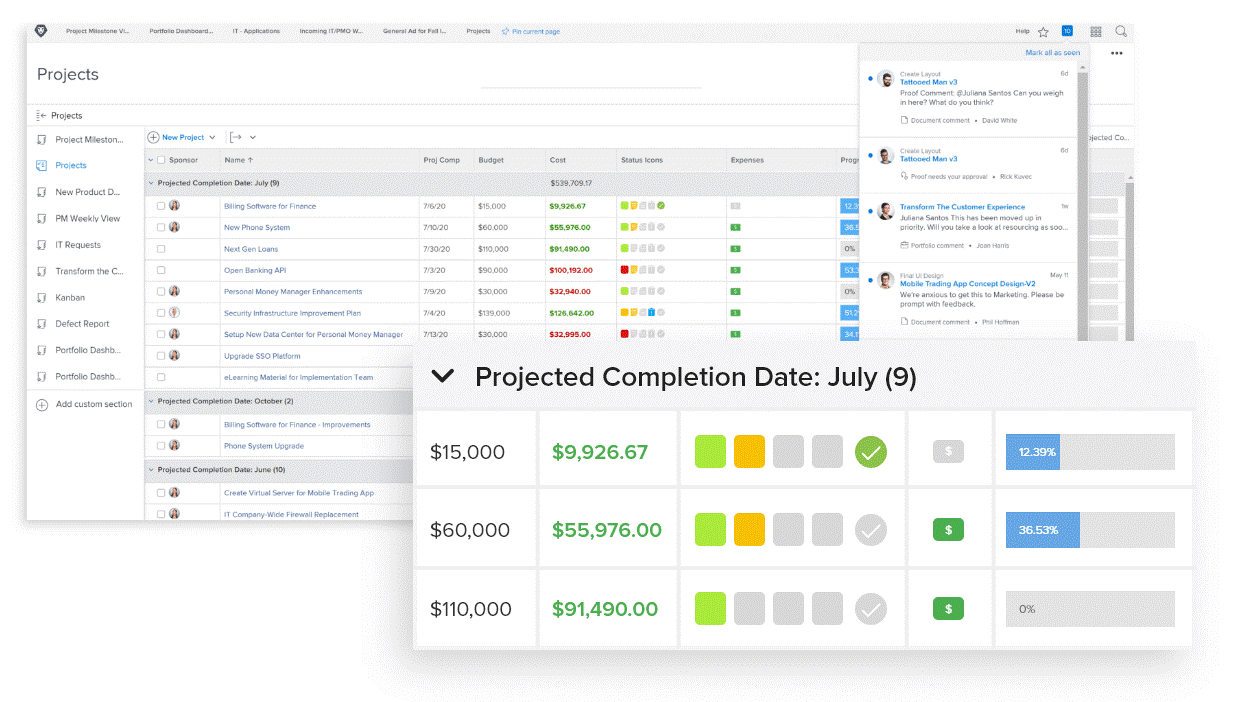
Adobe Workfront is an enterprise work management solution that helps teams plan, manage, and deliver projects and maintain visibility across the organization. It’s for teams handling complex workflows that need control over schedules, resources, and approvals in one connected space.
Why I Picked Adobe Workfront
I picked Adobe Workfront because it provides comprehensive project oversight alongside its automation capabilities. With features like automated workflows, you can create sequential or parallel review stages, which simplifies complex approval processes and makes sure your projects move smoothly through each phase.
Workfront's project templates and blueprints let you standardize and accelerate project setups, eliminate repetitive tasks, and improve consistency across your operations. These functionalities save time and give you more visibility and control over project timelines.
Adobe Workfront Key Features
Adobe Workfront offers several other project management and workflow automation features that you and your team will find useful.
- AI-Powered Briefs: This feature lets you auto-generate project briefs from uploaded documents to reduce manual data entry and facilitate quick project initiation.
- Resource Management: You can get real-time insights into team workloads, which helps with task allocation and minimizes the risk of burnout.
- Advanced Reporting and Dashboards: These provide flexible and actionable insights into project performance to help you make data-driven decisions.
- Project Visualization: Tools like Gantt charts help you visualize project timelines and dependencies so your team can stay on track.
Adobe Workfront Integrations
Integrations include Frame.io, Creative Cloud, Box, Dropbox, Google Workspace, Jira, Microsoft Calendars (Office 365/Outlook Live), Microsoft OneDrive, Microsoft Outlook, Microsoft Teams, and Salesforce.
Pros and Cons
Pros:
- Online proofing tools simplify version control
- Integration with BI tools like Tableau and Power BI
- Customizable dashboards and reports
Cons:
- Limited offline capabilities
- Integration setup can be time-consuming


ClickUp is a cloud-based project management and team collaboration platform that will help you bring all of your tools into one place and create automated workflows that save you time.
As Jeff Cypher, Head of Growth at ZenPilot, told us, "If you want to be able to track things like time, manage tasks, and have a single source of truth, that’s when ClickUp really shines."
Why I Picked ClickUp
I chose ClickUp for this list for its flexible approach to creating automations. I love how the automations module lets you create combinations of triggers and actions that replace manual procedures. You can create custom automations in a drag-and-drop interface. Additionally, you can chain multiple actions together and set conditions to determine when your automations should run. The software can send notifications when specified events occur.
However, I should note that you need the owner or admin of the software to enable automations from the ClickApps menu before you do anything else. Otherwise, you won't see the automations view in your instance of the software.
ClickUp Key Features
In addition to its flexibility, ClickUp offers a variety of automation features to help increase your team's productivity.
- Pre-Built Templates: You can quickly set up routine tasks such as assigning responsibilities and updating task statuses with a library of ready-made templates.
- Email Automation: This lets you automatically send email notifications for specific task actions to keep your team and stakeholders informed without manual intervention.
- Audit Logs: You can keep track of all automation activities within a centralized log, which makes it easy to monitor changes and maintain accountability.
- AI-Powered Updates: This lets you use AI to generate task summaries and project updates, which helps keep your team informed with minimal effort.
ClickUp Integrations
Integrations include Slack, GitHub, Zapier, Miro, Wrike, Airtable, Jira, monday.com, Salesforce, Box, and Zendesk.
Pros and Cons
Pros:
- Extensive library of pre-built automation templates
- Dynamic assignees keep tasks assigned to the right people
- Highly customizable automations with triggers, conditions, and actions
Cons:
- Automation features limited on the free plan
- Some users report occasional delays in automation execution
New Product Updates from ClickUp

ClickUp Enhances Task Management and Introduces AI Notetaker
ClickUp introduces an AI Notetaker for meetings and improves task type management in views. These updates help teams capture meeting insights automatically and organize work more efficiently. For more information, visit ClickUp’s official site.
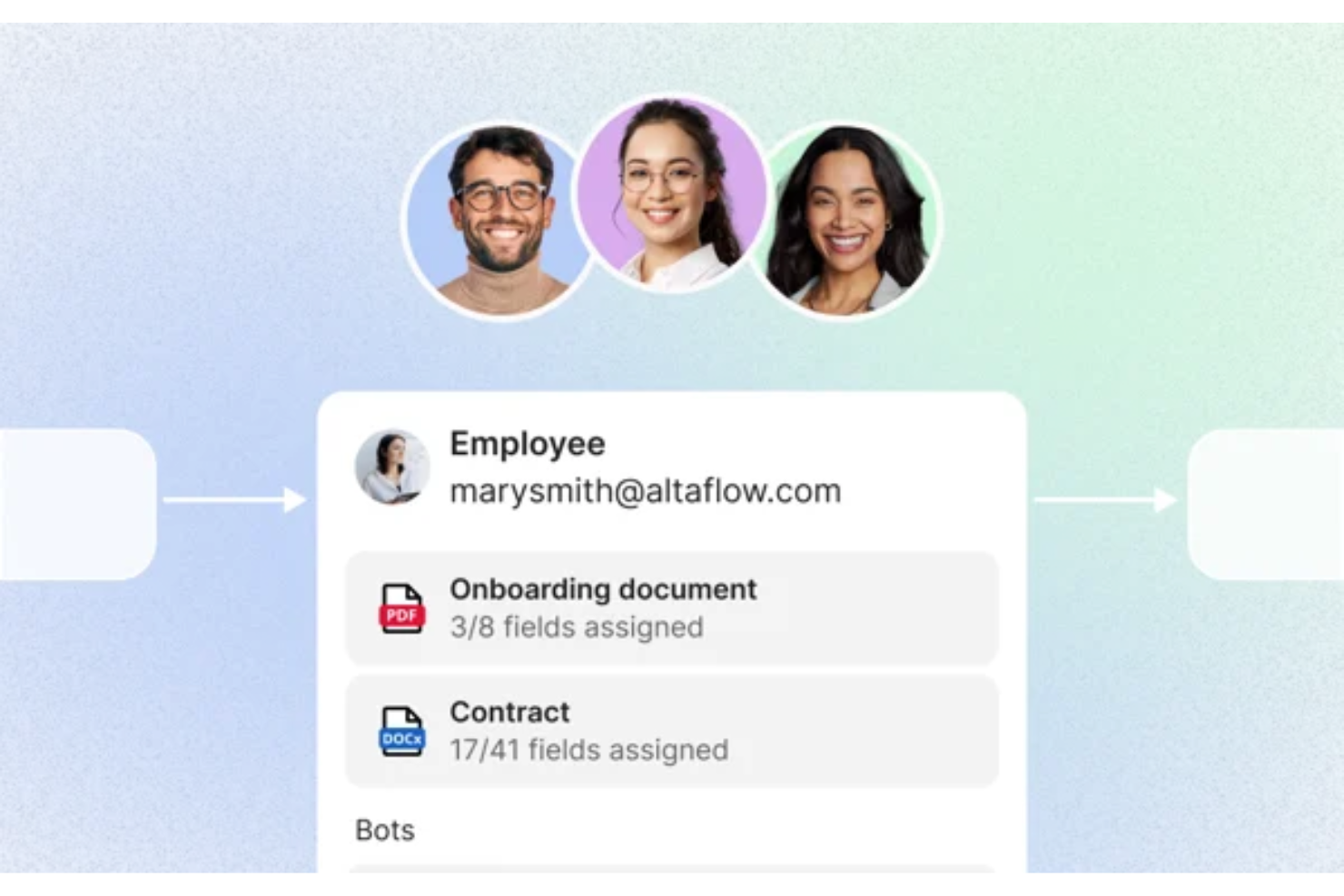
altaFlow offers workflow automation designed for organizations that need advanced document management and CRM integration. It’s a strong fit for teams in regulated industries or those handling complex approval processes. If your business relies on automating document workflows and syncing data across platforms, altaFlow addresses these needs with a focus on compliance and integration.
Who Is altaFlow Best For?
altaFlow is a good fit for mid-sized to large enterprises in regulated industries that need to automate document workflows and integrate tightly with CRM systems.
Why I Picked altaFlow
For teams that need advanced Salesforce document automation, altaFlow stands out in the workflow automation space. I picked it because it offers native document generation and automated workflow triggers directly within Salesforce, which reduces manual steps and keeps processes consistent. The platform also supports dynamic template management, letting users create, update, and distribute documents based on real-time CRM data. This focus on seamless document automation inside Salesforce makes altaFlow a strong choice for organizations that rely on accurate, timely document workflows.
altaFlow Key Features
Some other altaFlow features that support workflow automation include:
- Approval routing: Route documents and tasks to the right stakeholders for review and sign-off based on custom rules.
- Audit trails: Track every action and change within workflows to support compliance and transparency.
- Conditional workflow branching: Set up workflows that adapt dynamically based on data or user input.
- Role-based access controls: Define permissions and access levels for users to ensure sensitive information is only available to authorized team members.
altaFlow Integrations
Integrations include Salesforce, NetSuite, SharePoint, and HubSpot.
Pros and Cons
Pros:
- Custom workflow builder supports complex processes
- Automated document generation from Salesforce records
- Detailed audit trails for compliance tracking
Cons:
- Documentation and support resources are minimal
- No free-forever or trial plan available


Qntrl is an advanced workflow orchestration software that improves productivity and efficiency in the workplace. At its core, it automates processes across different applications to reduce manual data entry and speed up workflows.
Why I Picked Qntrl
I chose Qntrl for its strength in managing cross-functional processes through features like Blueprint-based process modeling, form-based data capture, and role-based access controls that make sure the right people are involved at the right steps.
Its drag-and-drop workflow builder lets non-technical users quickly configure and launch end-to-end processes, while parallel transitions and stage-wise approvals allow multiple teams to collaborate simultaneously without bottlenecks. With built-in audit trails and customizable notifications, Qntrl keeps cross-departmental stakeholders informed and accountable throughout the workflow lifecycle.
Qntrl Key Features
Qntrl also offers a suite of other workflow automation features.
- Automatic Request Assignment: You can assign requests based on predefined hierarchies or dynamically through APIs to make sure tasks reach the right individuals without manual intervention.
- Post-Stage Automation: This lets you automatically trigger actions after certain stages, such as sending notifications or updating fields, to streamline follow-up tasks.
- Business Rules: You can set specific rules that dictate process behavior to maintain compliance and consistency across workflows.
- Document Generation: You can quickly create and share essential documents like purchase orders or invoices to reduce the time spent on paperwork.
Qntrl Integrations
Integrations include Salesforce, Dropbox, MS Teams, Harvest, Google Sheets, and Slack. You can also create as many custom integrations as you want using Webhooks and its API.
Pros and Cons
Pros:
- Employs robust security protocols
- Advanced automation, like conditional routing
- Extensive integration capabilities, with over 500 connections
Cons:
- More features than necessary for small teams
- Learning curve for more advanced features


Miro is a collaborative online workspace that offers a visual platform for innovation, providing features such as visual project management, diagramming, process mapping, product development workflows, and more.
Why I Picked Miro
While most workflow automation features are only possible with third-party integrations, Miro offers some key in-platform automation capabilities. These include templates for different types of workflows with customizable drag-and-drop interfaces, such as project planning, brainstorming, and sprints. It also offers smart diagramming with features like auto-align and auto-layout that can help automate the organization of elements within a board.
With integrations, Miro offers workflow automation like syncing project cards, providing updates in communication channels, and automating other project management functions.
Miro Key Features
Miro offers several other features for workflow automation and team collaboration.
- Customizable Templates: Miro provides over 300 templates that help teams quickly set up workflows and processes tailored to their specific needs.
- AI Tools: These tools can accelerate tasks by automating routine processes and generating insights, which lets your team focus on more strategic activities.
- Real-Time and Asynchronous Collaboration: Whether your team is working together in real-time or asynchronously, Miro helps make sure collaboration is efficient and effective.
- Interactive Presentation Features: You can engage your team with interactive elements during presentations and workshops, which facilitates better understanding and collaboration.
Miro Integrations
Integrations include Box, Airtable, Notion, Azure, Webex, Jira, Asana, Microsoft Teams, Google Drive, Slack, monday.com, Confluence, Zoom, and Figma.
Pros and Cons
Pros:
- Miro integrates well with other tools
- The platform allows multiple users to collaborate simultaneously
- Wide range of templates available for various use case
Cons:
- Limited offline access
- Performance issues when working with large boards
New Product Updates from Miro

Miro Enhances AI Workflows and Tables for Task Planning
Miro enhances AI workflows and Tables with AI-generated planning boards and web-aware automation. These updates help teams organize tasks faster and analyze external content within workflows. For more information, visit Miro’s official site.


Nanonets is an AI-driven platform that automates the processing of documents and manages workflows across sectors like finance, healthcare, and logistics. It efficiently handles tasks such as data extraction, invoice processing, and accounts payable, minimizing manual labor and reducing processing times.
Why I Picked Nanonets
I chose Nanonets for its AI-driven capabilities that can automate complex workflows using natural language processing, allowing you to manage workflows that interact with various apps and data sources. The platform supports custom Language Learning Models (LLMs) for tailored responses and actions, enhancing workflow customization to meet specific business needs. This lets you design workflows that are automated and adaptive to unique business environments.
Additionally, Nanonets offers a human-in-the-loop feature for manual approvals, providing an extra layer of accuracy in automated workflows. It's also a no-code platform, so you can automate these workflows without coding expertise.
Nanonets Key Features
Nanonets also offers a variety of other features that make it appealing as a workflow automation tool.
- Advanced Optical Character Recognition: This feature lets you convert various document types into editable data, which streamlines document processing tasks.
- Automated Workflows: You can set up workflows that handle repetitive tasks, which frees your team up to focus on more strategic activities.
- Multiple File Upload Options: This lets you upload and process multiple documents simultaneously, which improves efficiency in handling bulk data.
- Data Extraction Capabilities: You can extract data accurately to reduce errors and make sure your workflows maintain high levels of precision.
Nanonets Integrations
Integrations include QuickBooks, Salesforce, Google Sheets, Dropbox, and Zapier.
Pros and Cons
Pros:
- Simple API for easy integration
- Compatible with multiple programming languages
- Data extraction features
Cons:
- Fewer customization options than other tools
- May not be suitable for more extensive machine learning projects with large datasets

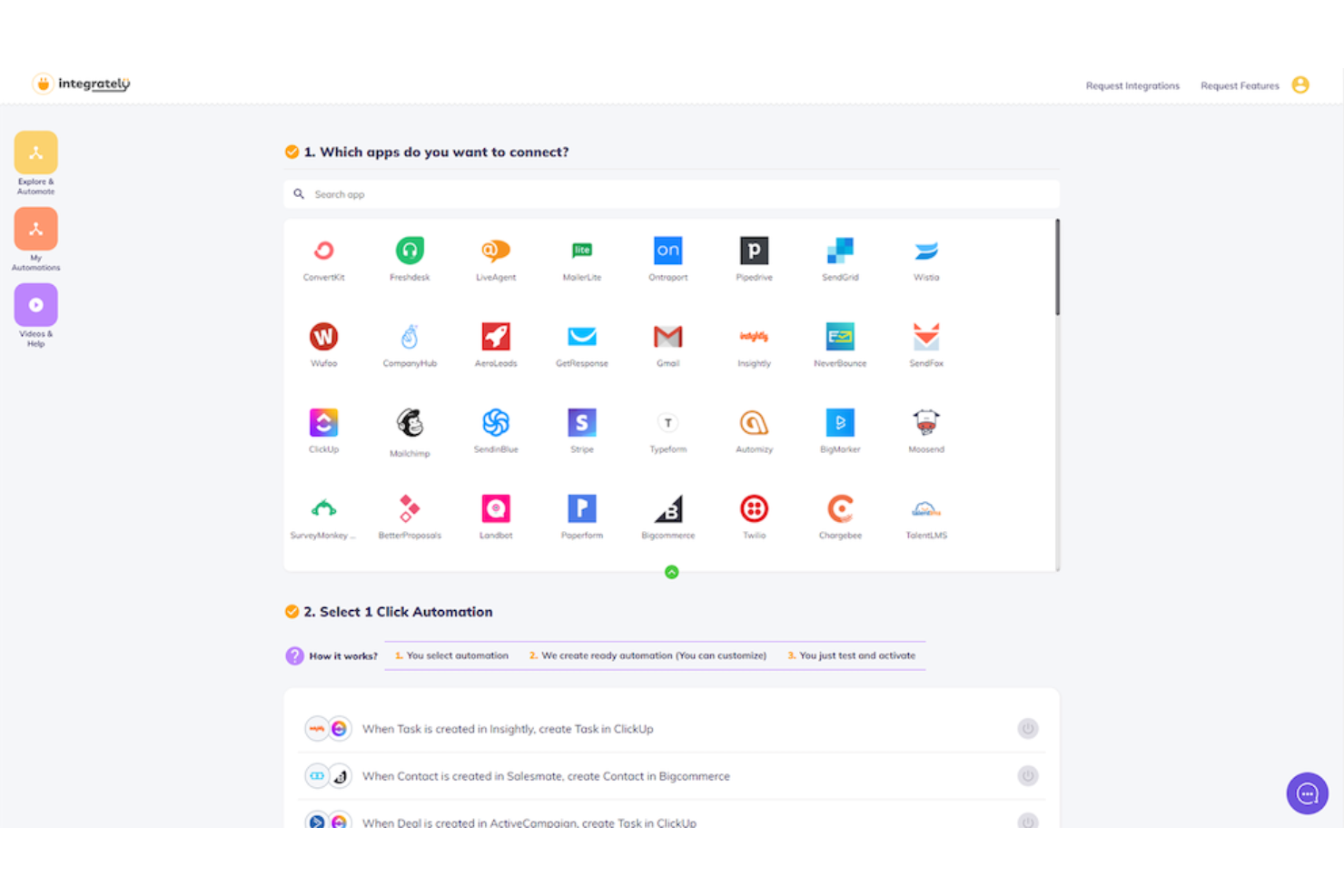
Integrately is a user-friendly automation platform that offers over 20 million pre-made automations for more than 1200 different apps, enabling users to connect and automate their tasks with just one click.
Why I Picked Integrately
One of the most compelling features of Integrately is its AI automation builder. It offers a vast library of pre-built automations that can reduce the time and effort required to set up workflows, making it an ideal choice for businesses looking to improve their operations quickly. The platform also offers webhook connectivity, allowing for custom integrations that can cater to more specific business needs.
Integrately Key Features
Integrately offers several other features that make it easy to automate your workflows and processes.
- Intuitive No-Code Interface: This user-friendly drag-and-drop builder lets you manage workflows effortlessly and is accessible for those without technical expertise.
- Multi-Step Automations: This feature lets you create workflows that involve multiple steps across different applications to account for complexity and depth in your automation tasks.
- Real-Time Monitoring and Alerts: A comprehensive dashboard lets you track automation performance and get instant notifications about execution status so you can stay informed at all times.
- Data Mapping and Transformation: With flexible data manipulation and built-in functions, you can handle data efficiently across different applications to maintain accurate and consistent outputs.
Integrately Integrations
Integrations include Google Sheets, HubSpot, CompanyHub, MailerLite Classic, Elementor Forms, ActiveCampaign, WordPress, ClickUp, Google Forms, Gmail, Salesforce, Flowlu, Encharge, and Pipedrive.
Pros and Cons
Pros:
- Complex workflows can have multiple triggers and paths
- Scale small automations to larger ones easily
- Clone and reuse automations across workflows
Cons:
- Setting up advanced logic has a learning curve
- Some niche integrations may not support specific triggers


Camunda is a workflow automation software that helps teams design, execute, and manage complex business processes.
Why I Picked Camunda
Camunda's Zeebe engine is built for high-throughput, distributed environments, making it ideal for automating high-volume, mission-critical processes. It avoids traditional database bottlenecks by using an event-driven architecture, allowing you to process thousands of workflow instances per second with low latency. This is especially useful if you're orchestrating microservices, APIs, or systems that require fast, reliable automation.
I also like its ability to handle both automated and human tasks within the same process. You can assign user tasks, manage RPA bots, and automate decisions all in one flow. Its native support for BPMN and DMN ensures that what you model is exactly what runs, giving you full control and transparency over your workflows.
Camunda Key Features
Camunda offers several other features that can help you automate your workflows and processes.
- Visual Workflow Modeling: This feature lets you design and optimize workflows using BPMN standards through an intuitive drag-and-drop interface. This helps maintain clarity and collaboration across your team.
- Dynamic Task Allocation: You can automatically assign tasks based on resource availability and expertise, which helps improve efficiency and balance workloads within your organization.
- Real-Time Monitoring and Analytics: This provides dashboards that give insights into workflow performance and let you identify bottlenecks and make informed decisions for continuous improvement.
- Low-Code Development: The low-code modeler integrates BPMN notation, so you can create compliant models with minimal programming knowledge.
Camunda Integrations
Integrations include Salesforce, Microsoft Dynamics, SAP, Oracle, Microsoft SharePoint, Alfresco, Apache Kafka, RabbitMQ, MySQL, PostgreSQL, Microsoft SQL Server, Amazon Web Services (AWS), Microsoft Azure, Google Cloud Platform (GCP), Signavio, Bizagi, and ProcessMaker.
Pros and Cons
Pros:
- API-first approach makes it easy to integrate with various systems
- Provides visibility into running processes
- Offers highly scalable architecture
Cons:
- Running at scale may require significant infrastructure resources
- Steep learning curve, not beginner friendly
Other Tools
- Kissflow Workflow
For non-technical users
- Boomi Flow
For low-code workflow automation
- Pneumatic Workflow
For templated workflows
- Jotform Workflows
For no-code workflow building
- Hive
For beginners
- SysAid
For IT service management
- Kantata
For professional services
- StreamWork
For creative workflows
- Make
For visual-first automation
- DocuWare
For document management


Workflow Automation FAQs
Find answers to common questions about this topic.
What is workflow automation?
What is workflow automation software?
Why is workflow automation important?
What is a workflow automation example?

What features should I look for when selecting workflow automation software?
What other tools have workflow automation?
What's Next?
If you're in the process of researching workflow automation softwares, connect with a SoftwareSelect advisor for free recommendations.
You fill out a form and have a quick chat where they get into the specifics of your needs. Then you'll get a shortlist of software to review. They'll even support you through the entire buying process, including price negotiations.
Related tool lists: